.jpg)
This guide explains the GotSport roster and online check-in process for Woodland Soccer Club tournaments. Coaches and team managers can use the same steps for each event.
The screenshots below use Fright Fiesta as an example. Select your own tournament and current registration season when following the steps.
Before you start: Read your tournament’s rules and registration instructions for its check-in deadline, roster limits, player eligibility, accepted passes, and required documents. Use the tournament you are attending wherever this guide says “your event.”
1. Build your tournament roster
- Sign in to GotSport with your coach or team-manager account.
- Open Team Management and select your team.
- Select Team Registrations, then click Rosters beside your event.
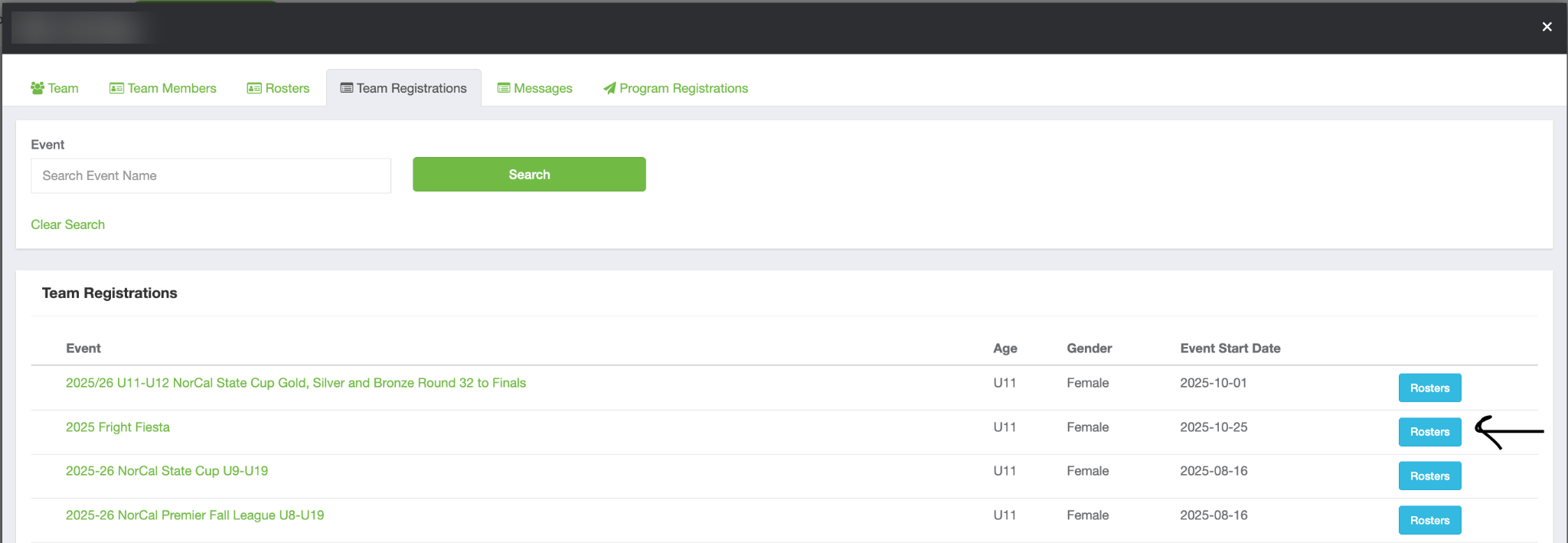
Choose Rosters beside your tournament in Team Registrations. Tap or click the image to view full size. - If available, use Clone Event to choose the appropriate existing roster and click Clone. Review the players copied into the event roster. If the event uses a linked source roster instead, ask your club registrar to help with any changes that must be made in that source event.
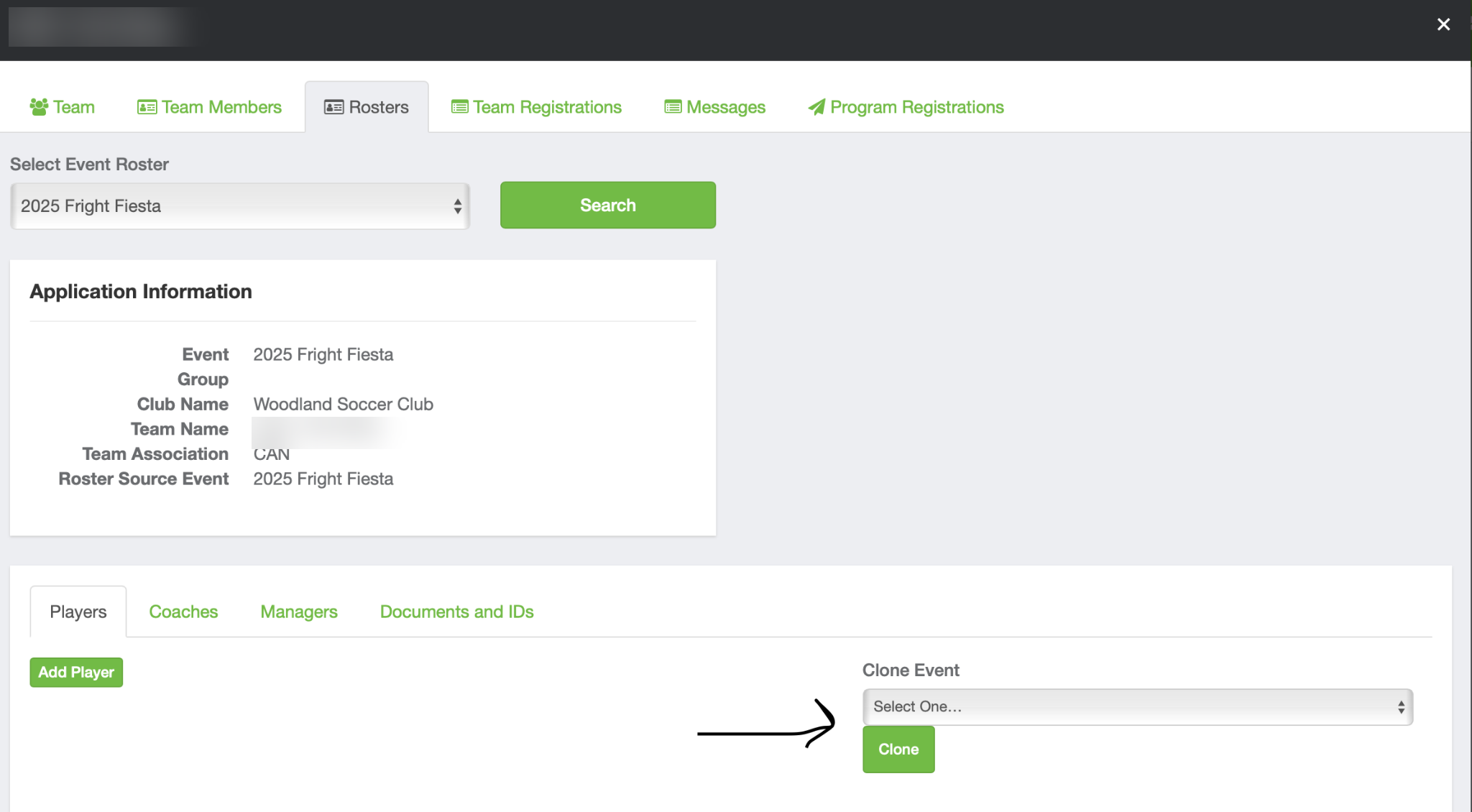
Select the source event and use Clone to copy the roster. Tap or click the image to view full size. - Add or remove players as needed, including eligible club-pass and guest players. Follow the event’s roster limits and your registering organization’s requirements.
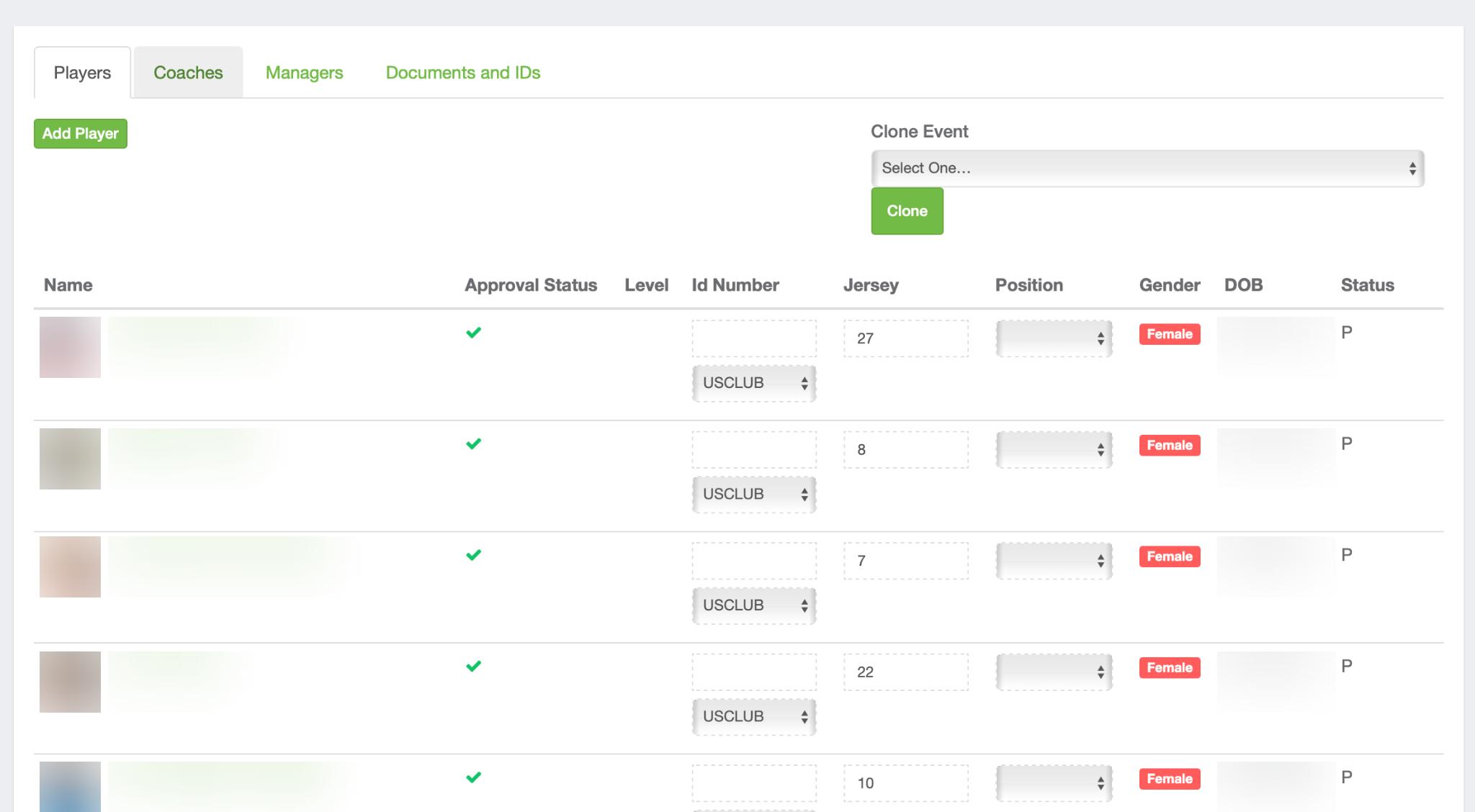
Review the players populated on your event roster. Tap or click the image to view full size. 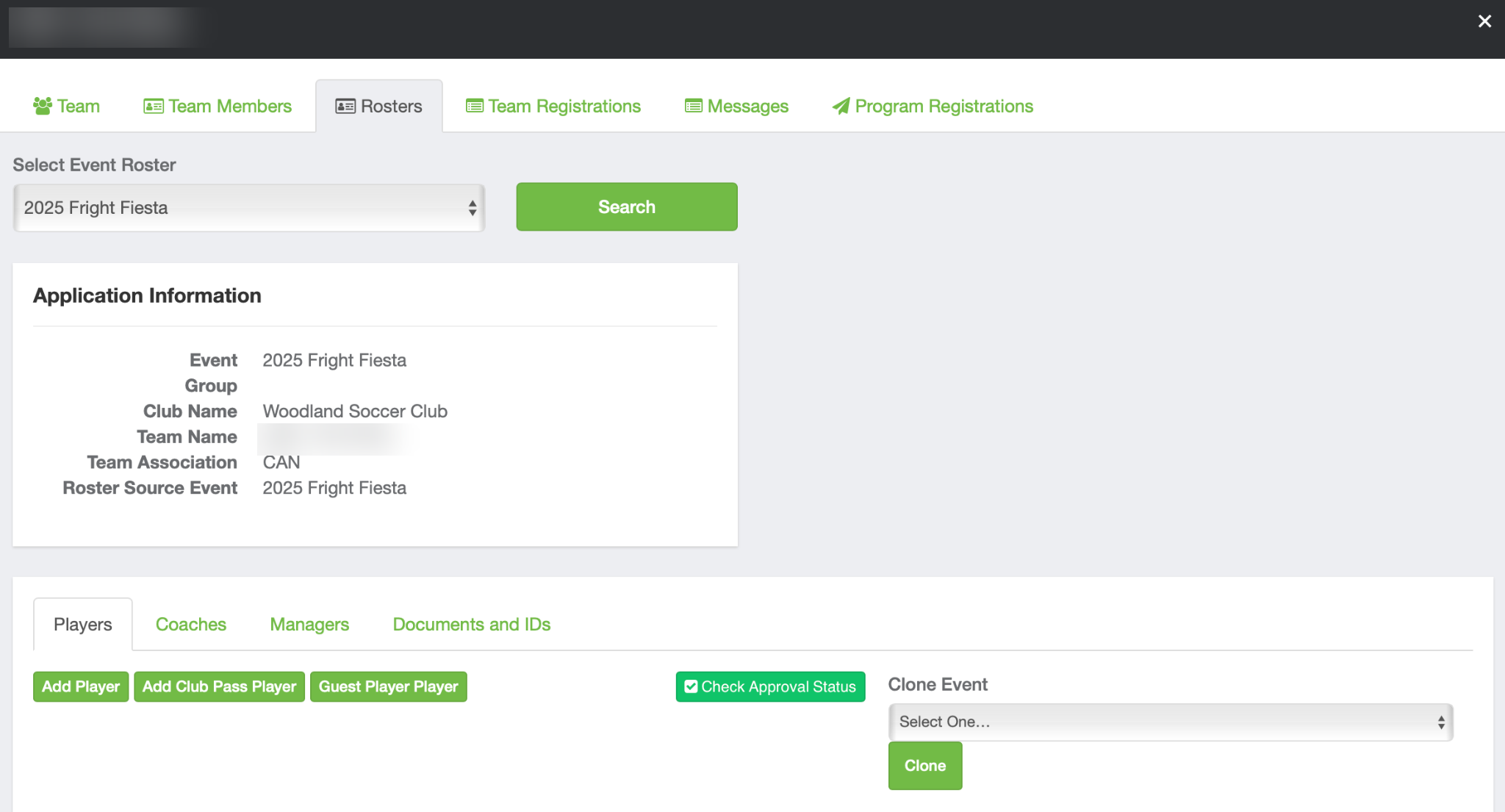
Use Add Club Pass Player or Guest Player as appropriate. Tap or click the image to view full size. - Click Check Approval Status, if available, and resolve any issues. A roster appearing in GotSport does not mean tournament staff has approved check-in.

Use Check Approval Status to review roster issues. Tap or click the image to view full size.
Check that every participating player appears on the correct event roster. Follow the tournament’s rules about participation on more than one team, and keep required passes, releases, and guest-player authorizations available for inspection.
2. Download your roster
- From the roster view, select Documents and IDs.
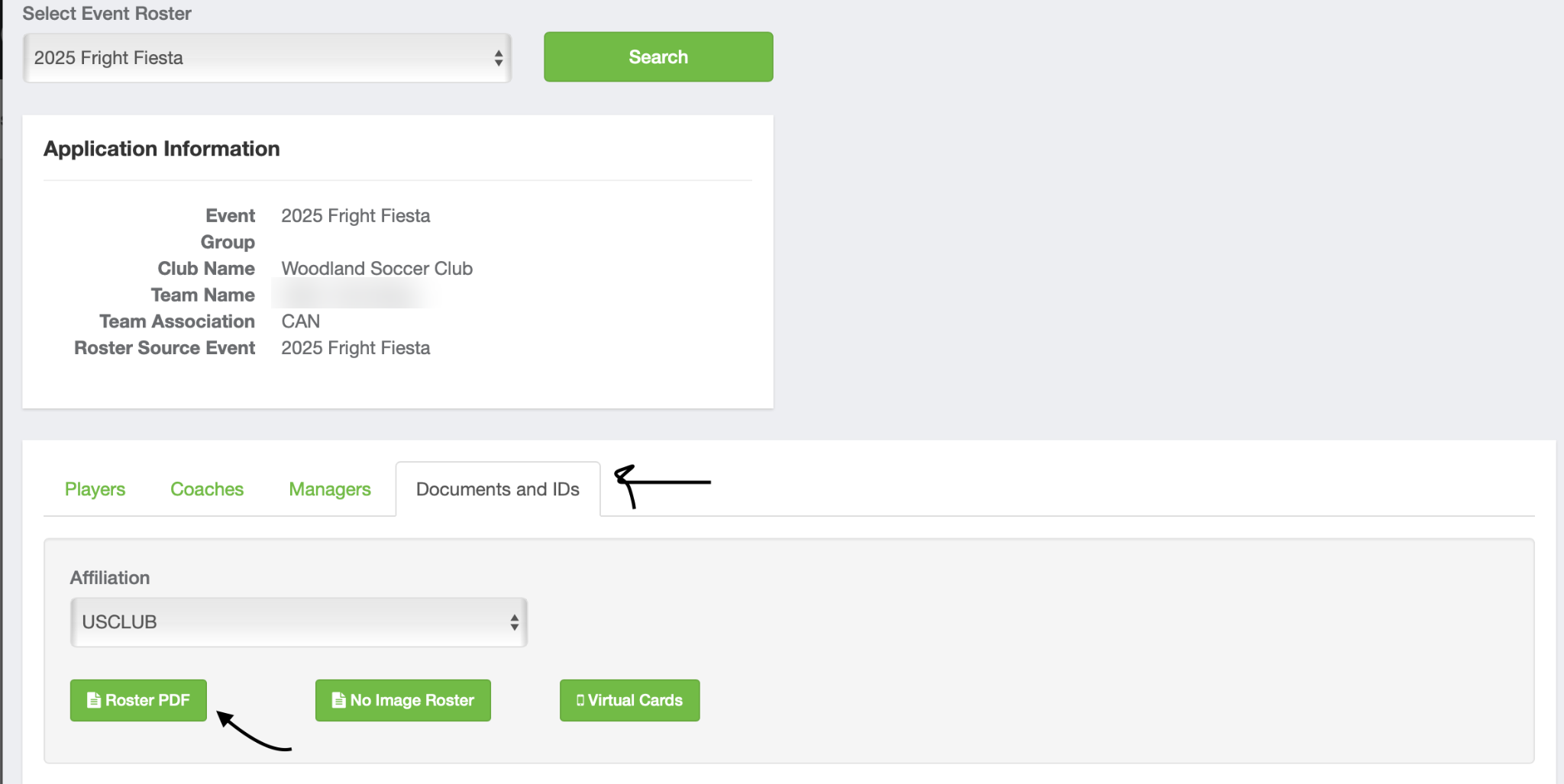
Open Documents and IDs and select Roster PDF. Tap or click the image to view full size. - Select Roster PDF and save the downloaded file.
- Confirm that it shows the correct team and participating players.
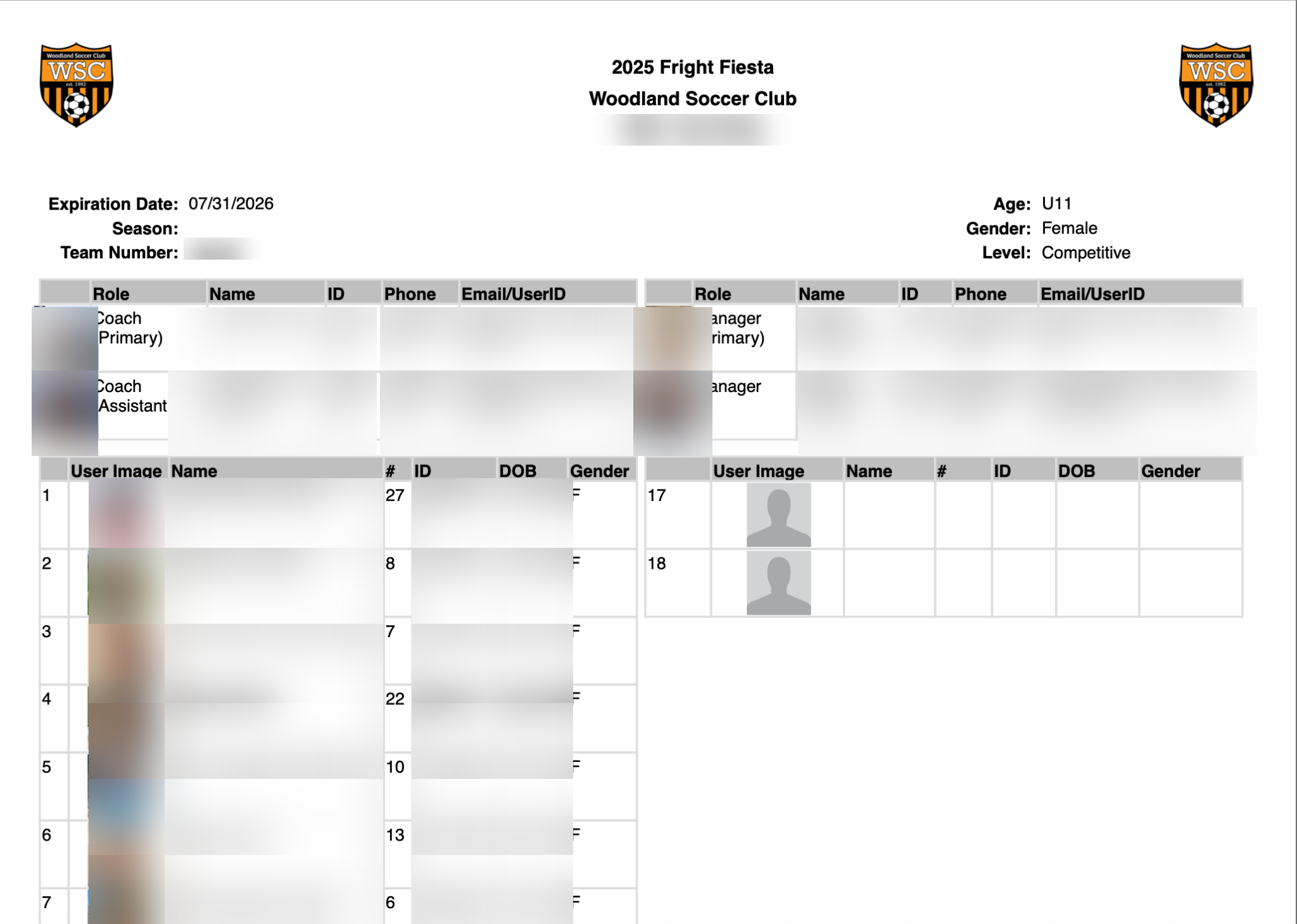
If the option is missing, the roster may need approval. Official registration rosters and passcards are generally found in your registering organization’s Passcard and Registration event, rather than the tournament itself. Use the roster requested by your tournament and contact your registrar if you are unsure which document to submit.
GotSport help: download rosters and player cards.
3. Prepare one player-pass PDF
Create a single PDF containing the valid passes for the players on your event roster. You can:
- Scan or photograph physical passes, keeping each player’s photo, full name, and birthdate readable.
- Ask your club registrar for a team pass PDF or individual player-pass files.
- Download available ID cards from the appropriate official registration/passcard event in GotSport under Documents and IDs → ID Cards.
Combine the passes into one PDF, with one or more passes per page. You may place pass images in Word or Google Docs and export the document as a PDF. Include only players on your tournament roster; remove passes for players who are not participating.
Each upload field accepts one file, with a maximum size of 20 MB. Keep all passes legible when reducing the file size. Use passes from the registering organization accepted by your tournament; this guide does not require a particular affiliation or seasonal year.
4. Upload documents and review check-in
- Return to Team Management → select your team → Team Registrations, then click your tournament’s name.
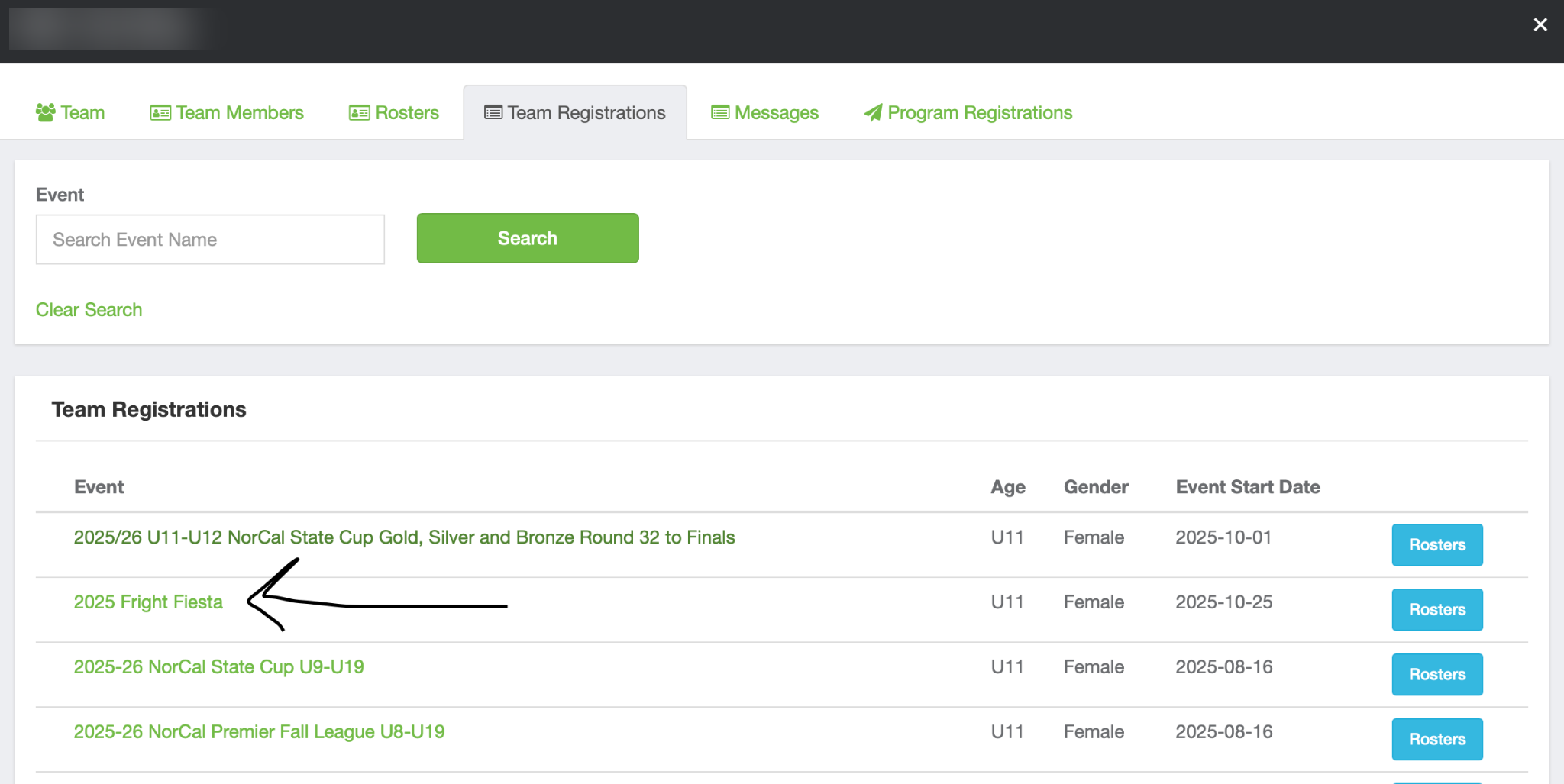
Click the tournament name to open your event registration. Tap or click the image to view full size. - Open the Registration tab and click Edit beside Registration Form Answers.
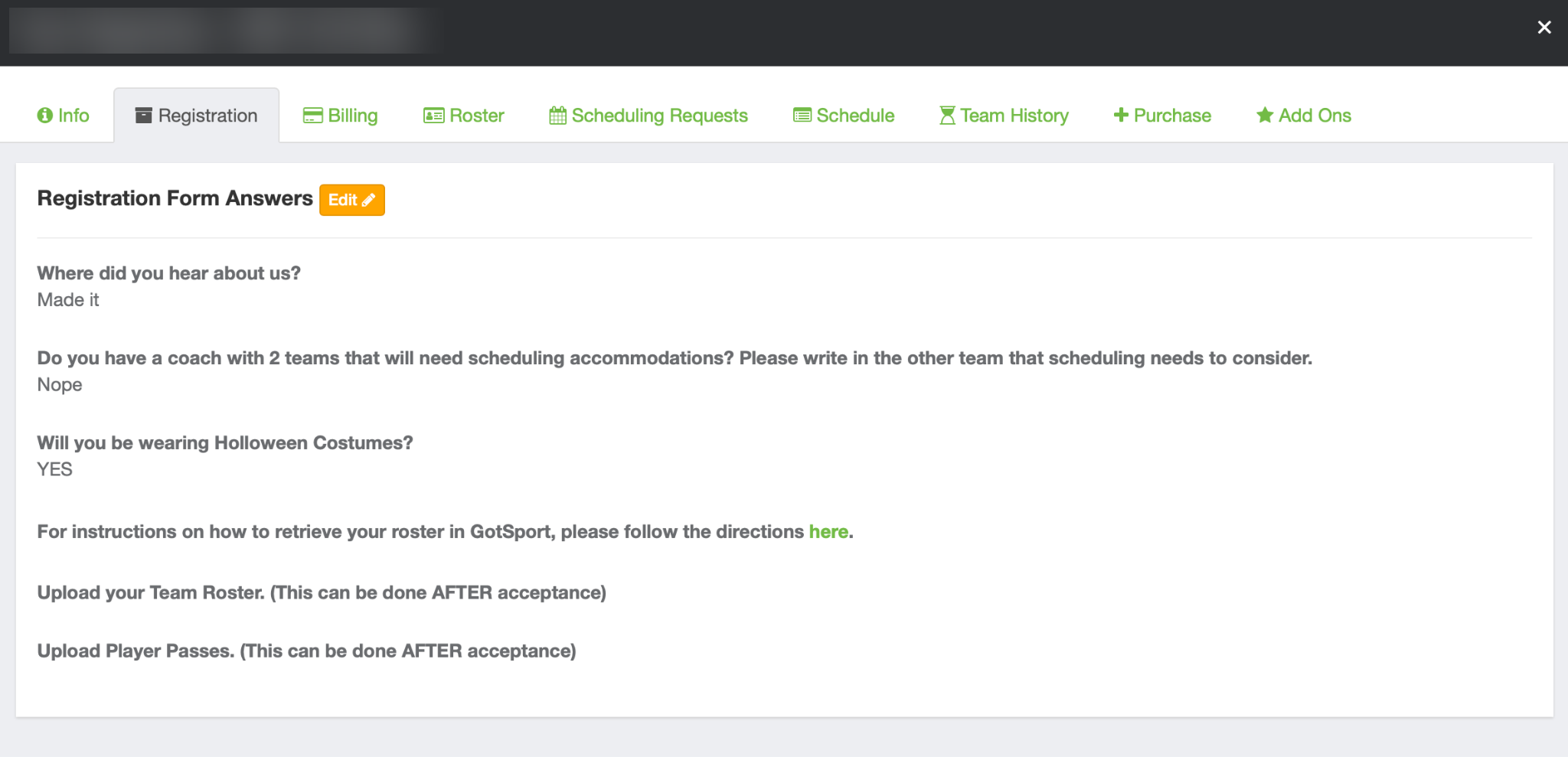
Open Registration and choose Edit beside Registration Form Answers. Tap or click the image to view full size. - Use the roster upload field to attach your roster PDF and the player-pass upload field to attach your combined pass PDF.
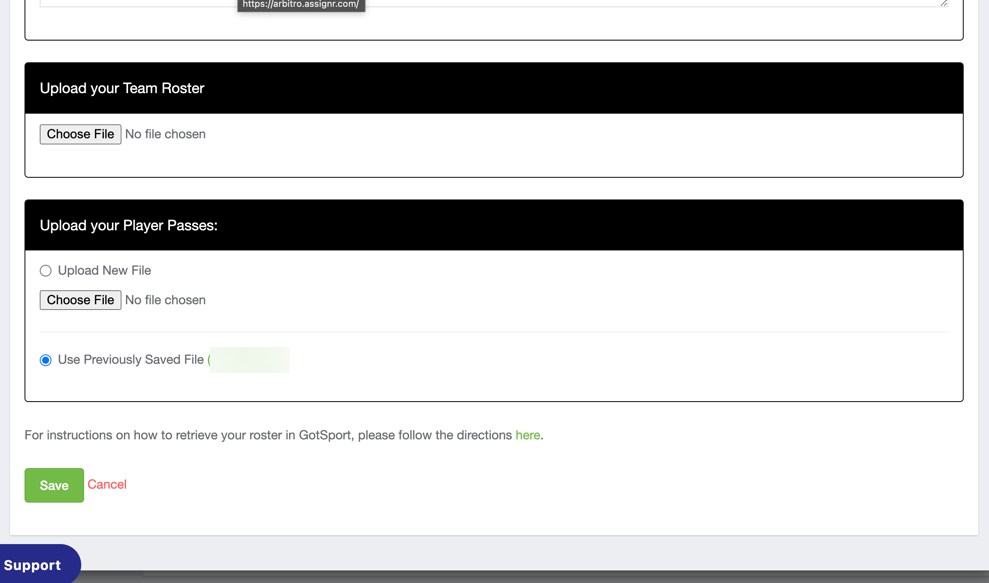
Choose the roster and player-pass files, then save the application. Tap or click the image to view full size. - Submit any additional documents requested by the event, such as medical and liability releases, guest/loan authorizations, or applicable travel and insurance documentation.
- Click Save. Reopen the registration to confirm that the correct files are attached.
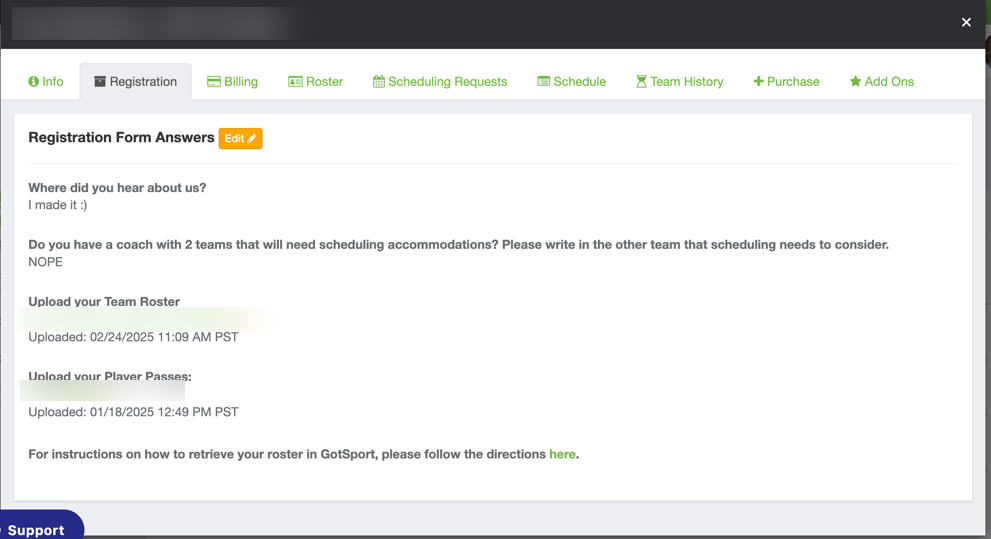
Confirm that both uploaded files appear on the registration. Tap or click the image to view full size. - Check document review status in the Registration tab. Hover over the status icon beside each document to see whether it is pending, approved, or denied. Follow up on any corrections before the event deadline.
Uploading files does not complete staff approval. Follow the event’s instructions until your roster and required documents have been approved. If your roster changes before the event’s roster freeze, update the affected files and notify tournament staff if review is needed again.
GotSport help: upload check-in documents · GotSport help: check document status.
Need help?
Contact your club registrar first for help with roster access, official rosters, passes, or player eligibility. If you still need tournament assistance, email tournaments@woodlandsoccerclub.com with your event name, team name, and a description of the issue.